Templates - Types Available
versaSRS contains an extensive templating capability, with options for introducing standard templates at many different levels within the system.
Case Templates allow a user to design typical templates for Cases which they can save and apply again when first logging a Case or editing an existing Case.
Using a Case Template is a very powerful way of quickly logging a new Case - enabling you to auto-populate the Case Logging Screen.
-
A Case Template may be used to set:
- Primary and secondary contacts.
- Priorities.
- Teams, Functional Areas and Qualifiers.
- Case Type, Received By.
- Problem.
The User may select these templates via the Templates button  in the Case Details window.
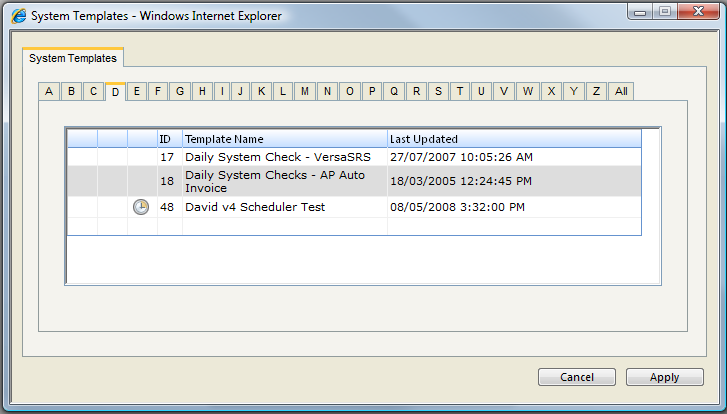
Note: it is also possible to assign a template to a Key (Qualifier) Set (Qualifier 1, Qualifier 2, Qualifier 3). The Key (Qualifier) Set can define an optional Case template. When this Key Set is assigned to a Case, the User will be asked if they would like to apply the associated Case template.
Note: Case templates can also be Scheduled. versaSRS includes a Scheduling Engine designed to log Cases based on a Case template and associated recurrence pattern. This feature is ideally suited to Customer follow up and reminders for renewals (e.g. maintenance renewal).
Update Templates allow the user to set the text and Case handling for a Case update. This may be an internal email with known distribution email addresses and a completed email text.
Like Case Templates
-
An Update Template may be used to set:
- Update Type.
- Case Status.
- Subject and body of the update (in case of email update).
- Recipients (To, Cc, Bcc) (in the case of an email).
- Signature and Closed Confirmation selections.
- Notes.
The User may select an Update Template via the Templates button in the Case Update window.
Task Templates allow the user to set the fields of a Task by selecting from a predefined template.
-
A Task Template may be used to set:
- Task.
- Details, Notes, and Resolution.
- Task Type, Status, % Complete, Risk and Due Date.
- Task Custom 1, Task Custom 2, Task Custom 3 and Task Custom 4.
- Assigned To.
The User may select an Update Template via the Templates button in the Task Details window.
See Also
Adding a new Case Template
Deleting a Case Template
Editing a Case Template
Case Templates - Setting against Key (Qualifier) Sets
Adding a new Update Template
Deleting an Update Template
Editing an Update Template