Managing Routing Rules
Routing Rules allow the Administrator to define special criteria which governs where incoming email message are sent. For example the Administrator could state that all incoming messages with 'Support' in the email subject get sent to the 'Support' Team.
TO address - Allows the 'TO' address to be speficied so that any incoming email to this address will be routed to the specified Queue with the specified Case configuration.
FROM address - Allows the 'FROM' address to be specified so that any incoming emails from this address will be routed to the specified Queue with the specified Case configuration.
SUBJECT keywords - Allows keywords to be specified so that incoming emails with the keyword(s) in the subject line will be routed to the specified Queue with the specified Case configuration.
Wild Cards - The Wild Card character '*' can be used within the SUBJECT keywords so that partial word matches can trigger the Routing Rule. For example having 'Sup*' as the keyword will trigger the routing rule for incoming emails with 'Support' or 'Supply' etc. in the subject line.
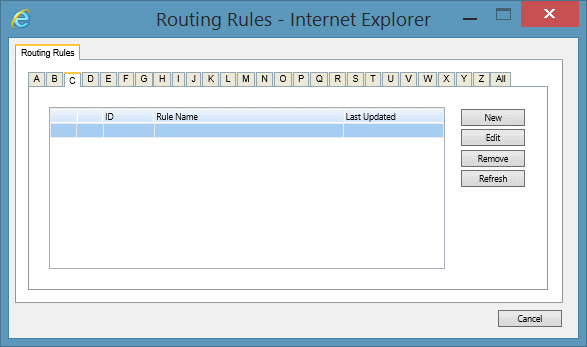
To set up Routing Rules select the Administrator Menu Item >> System Tools >> Manage Routing Rules.
See Also
Adding Routing Rules
Deleting Routing Rules
Editing Routing Rules